PDFs, slides and worksheets
Write on PDFs and lecture slides
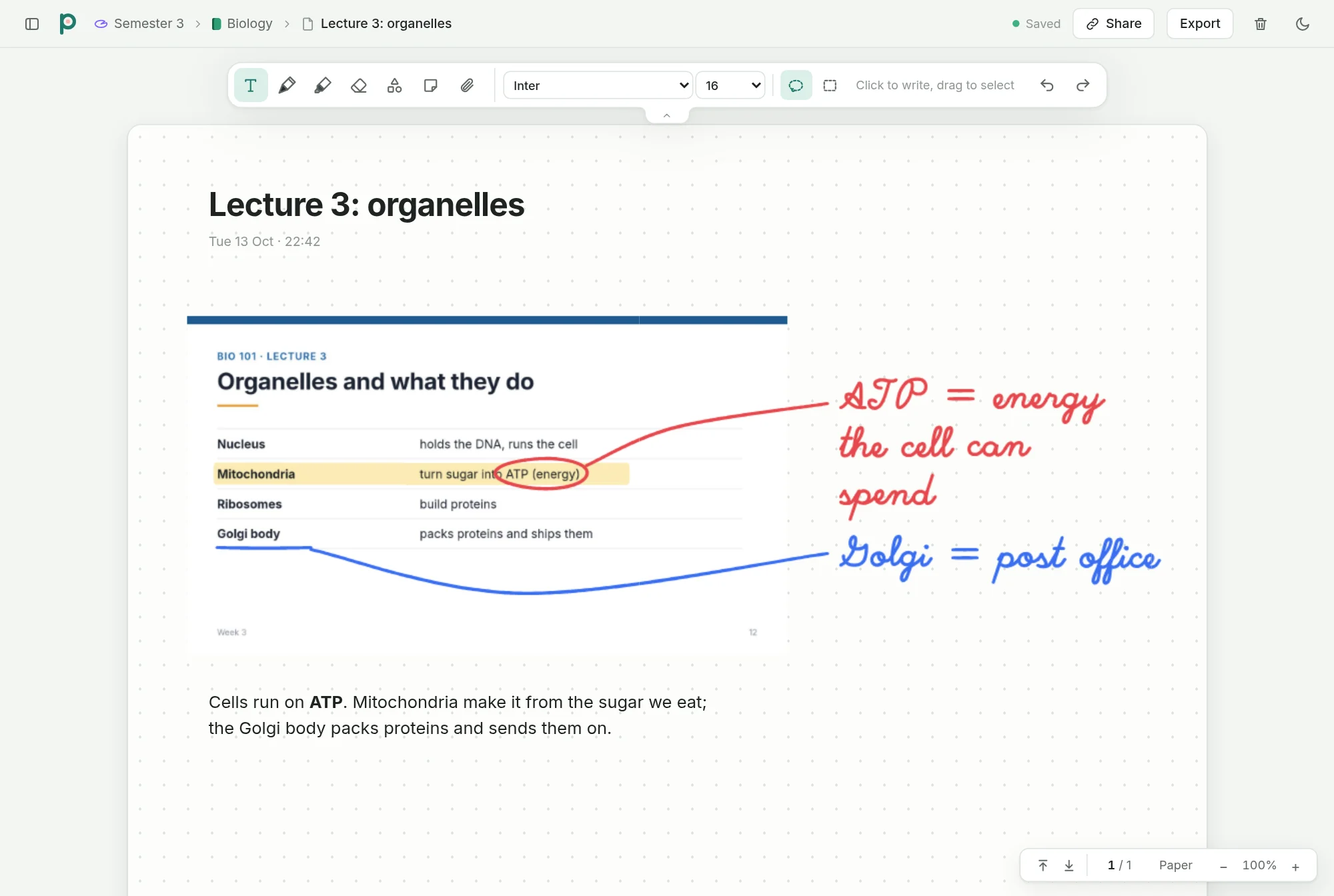
In Pondnote, each page of a PDF becomes a page of your note. You can write and highlight on it with a pen, type next to it, and export the note as a PDF again.
How to add a PDF
Open a note
Open the note the PDF should go into, or make a new one.
Insert the PDF
Press the insert button in the toolbar and choose PDF. You can also drop a PDF onto the note or paste it.
Write on it
Each PDF page lands on its own page of paper. Write, highlight and type on it like on any other page.
Export
Export as PDF saves the note as a PDF again, one page per page, with your handwriting and text on it.
Lecture slides
Import the slides before the lecture and write your notes on and next to each slide.
Worksheets
Put a worksheet into a note and hand it out with a copy link. Each student gets their own copy to fill in.
How PDF pages are stored
Pondnote places each PDF page on the note as a picture. The PDF's own text can't be selected or searched in Pondnote. The text you type next to it can.
Space
PDF pages count as files. The free plan syncs 100 MB of files, Plus syncs 10 GB.
Questions
Can I edit the text of the PDF?
No. The pages are pictures you write on. You can put text boxes next to them or on top of them.
Can I search inside a PDF?
No. Search finds only the text you typed in Pondnote.
Which devices can I use?
Anything with a current browser, such as an iPad, an Android tablet, a Windows laptop or a Chromebook. You can write with a pen, a finger or a mouse.
Is it free?
Yes. Importing and exporting PDFs is part of the free plan, with 100 MB of files. Plus has 10 GB.